Invitational Entry Summary
The Invitational Entry Summary tool calculates your team’s entry fees for the Summer Splash and City Meet invitationals directly from your SDIF entry file, then produces a clean, printable summary you can save as a PDF or email to the league treasurer and meet director. It replaces the old paper entry-summary worksheet and the manual math that went with it.
Quick Start
- Open the Invitational Entry Summary tool
- Choose the invitational — Summer Splash or City Meet
- Upload your team’s entry file (
.sd3, or the.zipit came in) - Review the auto-filled counts (swimmers, individual events, relays)
- Click Generate Summary
- Print / Save as PDF, or use Email Summary to send it in
The entry file is parsed entirely in your browser. Nothing is uploaded to a server, and swimmers’ birthdates are stripped during parsing — they never appear in the summary or leave the page.
Step 1 — Choose the invitational
Pick the meet from the Invitational dropdown at the top. This sets the correct fee schedule and the payment notes that appear on the finished summary.
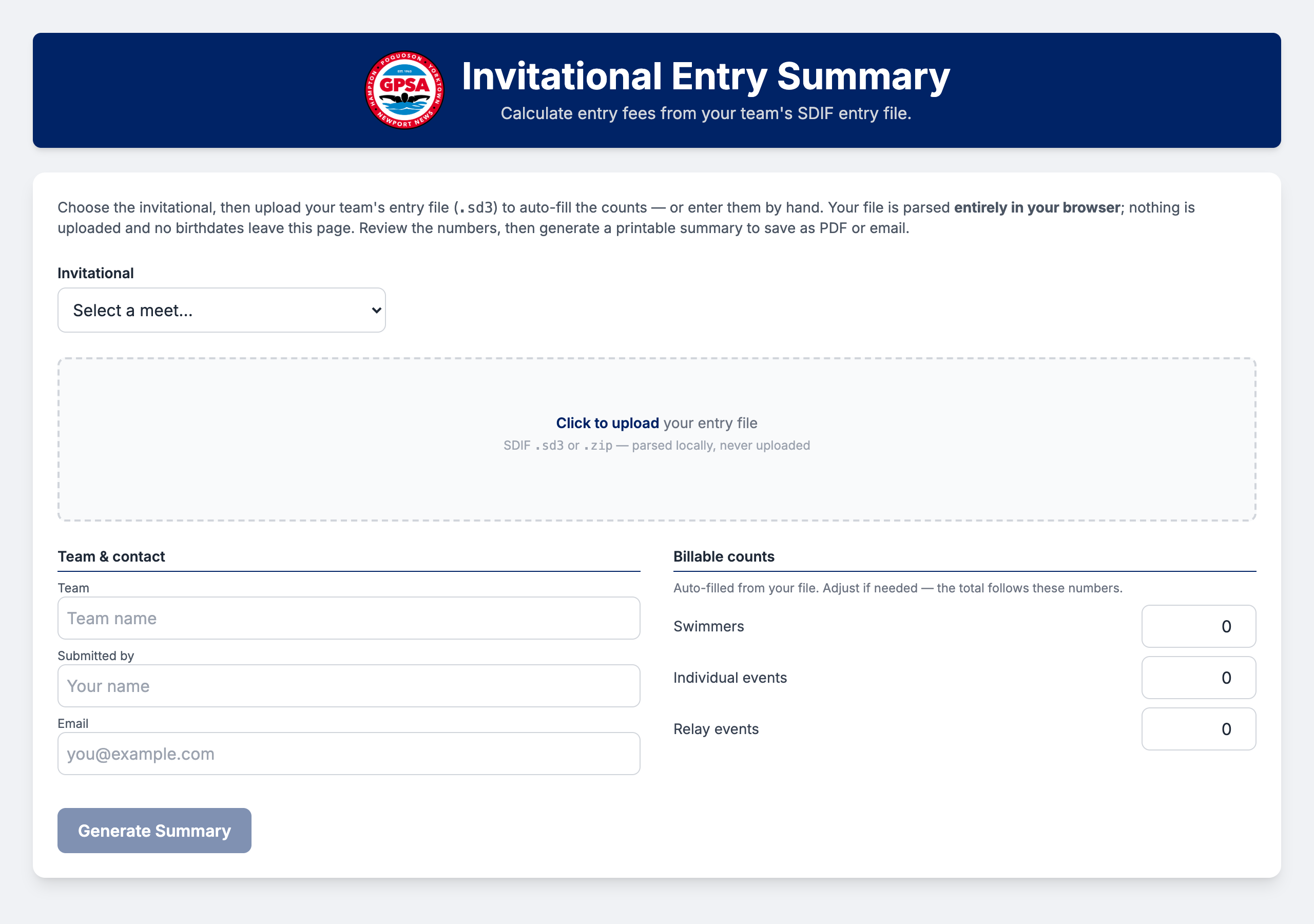
Step 2 — Upload your entry file
Click the upload area and select your team’s entry file.
- The tool accepts a SDIF
.sd3file, or a.ziparchive containing one (SwimTopia often downloads the export as a zip — you can drop the zip in as-is, no need to unzip it first). - Only your entry file is read; it is parsed on your device and never uploaded.
Getting the entry file
Export your meet entries in SDIF (.sd3) format from your team’s meet management software. If the download arrives as a .zip, upload the zip directly — the tool will find the .sd3 inside it.
Step 3 — Review the counts
The tool reads your file and fills in the three billable counts. Check these numbers before generating — they drive the total, and you can edit any of them if something needs adjusting.
| Count | What it means |
|---|---|
| Swimmers | Every swimmer entered, counted once. Includes swimmers who are only in relays. |
| Individual events | Total individual event entries across all your swimmers. |
| Relay events | Total relay entries (each relay squad counts once). |
A live Fee preview updates as you review, so you can see the total build up line by line.
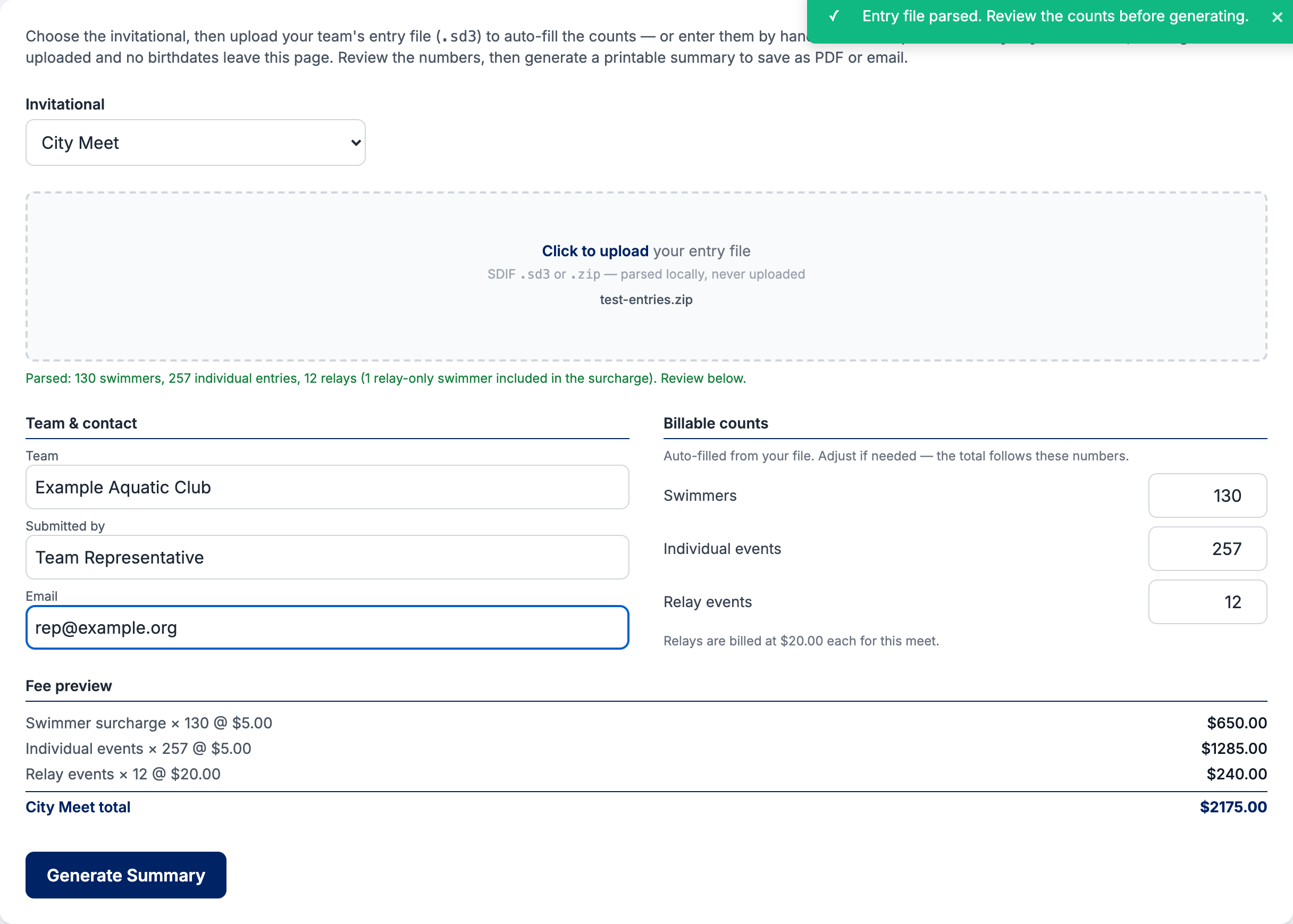
You can also fill in the Team, Submitted by, and Email fields — these appear on the finished summary. The team name is filled in automatically from your file when available.
Fee schedules
The tool uses the current GPSA fee schedule for each invitational:
| Item | Summer Splash | City Meet |
|---|---|---|
| Swimmer surcharge | $5.00 each | $5.00 each |
| Individual events | $5.00 each | $5.00 each |
| Relay events | No charge | $20.00 each |
At Summer Splash, relays are built from the swimmer pool by the meet director, so there is no relay charge. Summer Splash fees are collected at City Meet.
Step 4 — Generate the summary
Click Generate Summary. The tool produces a branded, print-ready document that clearly states which meet it is for, lists each fee line, shows the total due, and includes the payment notes for that meet.
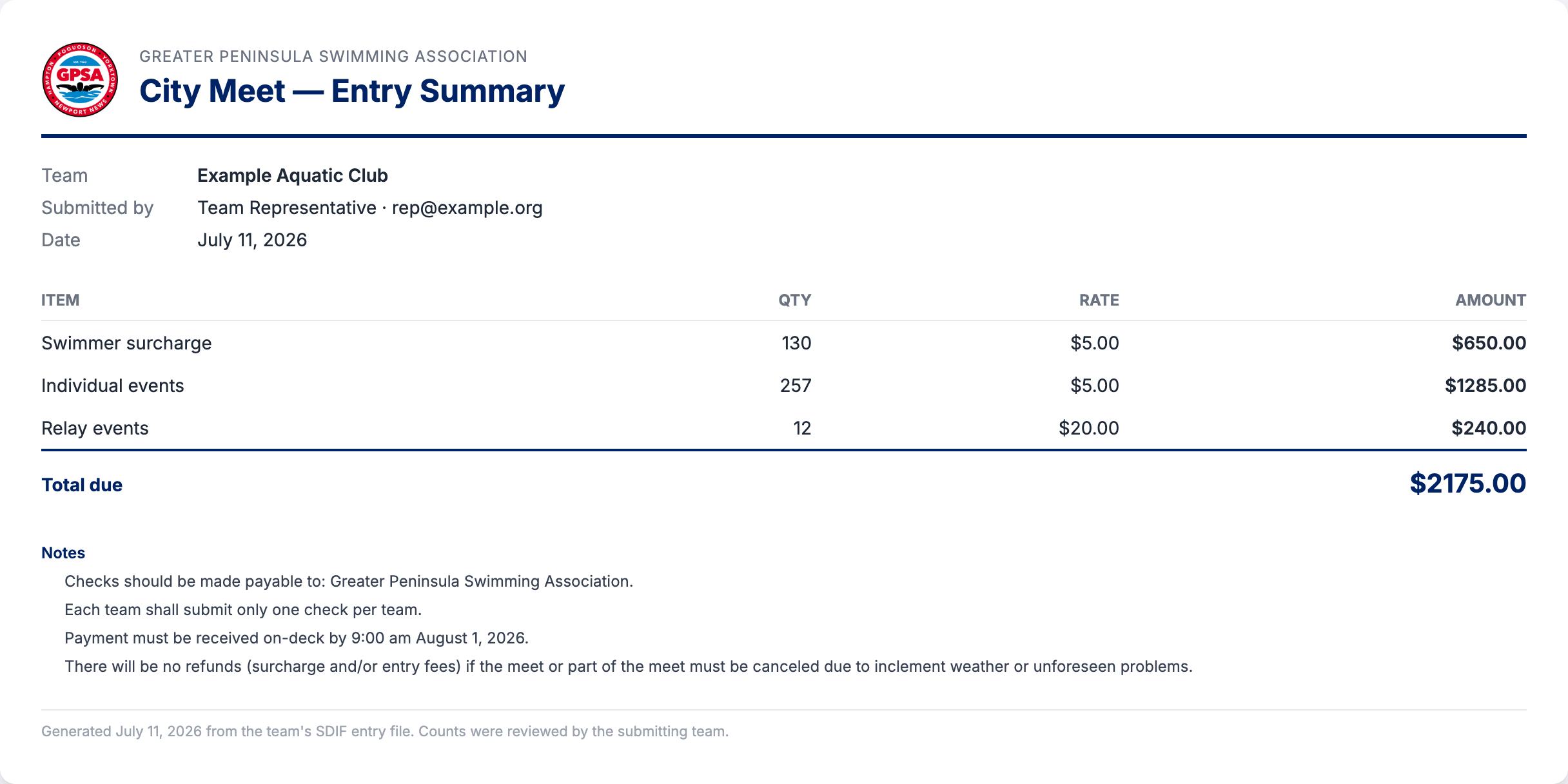
Step 5 — Print, save, or email
- Print / Save as PDF — opens your browser’s print dialog. Choose “Save as PDF” to keep a copy, or print it for on-deck payment.
- Email Summary — opens a pre-addressed email to the treasurer (
[email protected]), copying the meet director ([email protected]), with the totals in the body. Attach the PDF you saved before sending.
Checks are made payable to Greater Peninsula Swimming Association — one check per team. Payment must be received on-deck by 9:00 am on the day of City Meet. There are no refunds if the meet (or part of it) is canceled due to weather or unforeseen problems.
Troubleshooting
- “No SDIF file found in the zip archive.”
-
The zip didn’t contain a
.sd3(or.txt) file. Re-export your entries in SDIF format and try again, or upload the.sd3directly. - “Zip file is too large.”
-
Entry files are small; a zip over 256KB usually means it contains more than just the entries. Upload the
.sd3on its own. - The counts look wrong.
- You can edit any count by hand before generating — the total always follows the numbers shown. If the file itself is off, re-export your entries and re-upload.
- Nothing happens when I click “Email Summary.”
- The button opens your computer’s default email program. If you use web-based email, use Print / Save as PDF instead and attach the PDF to a new message to the treasurer and meet director.